> ## Documentation Index
> Fetch the complete documentation index at: https://docs.dally.ai/llms.txt
> Use this file to discover all available pages before exploring further.
# Connect Dally to Claude
> Add Dally to Claude, say hello, and ask about your content and audience.
Dally gives Claude the context to understand your content: your posts, how each one did, your comments and your DMs. You add Dally to Claude once, say hello, and Dally walks you through the rest in the chat.
You need three things: a Dally account, a Claude account, and an Instagram account to connect.
Until Dally is listed in Claude's connector directory, you add it as a custom
connector. Claude supports custom connectors on Free, Pro, Max, Team and
Enterprise plans. A Free account can have one custom connector.
## 1. Create your Dally account
Open [dally.ai](https://dally.ai/getting-started) and select **Get started**. Sign up with your email, then choose **Claude** on the **Add Dally to ChatGPT or Claude** screen.
That screen runs the same steps as this page and moves on by itself when Claude connects. You do not need to connect Instagram first; Dally asks for it after you say hello.
## 2. Add Dally to Claude
Use a computer, or a phone's browser. On a phone, sign in to claude.ai in Safari or Chrome first: the Claude app cannot add a connector yet. Once Dally is added on the web, the same Claude account can use it in the app too.
Select **Open apps** on your Dally setup screen, or open [Add Dally to Claude](https://claude.ai/customize/connectors?modal=add-custom-connector\&connectorName=Dally\&connectorUrl=https%3A%2F%2Fdally.ai%2Fmcp).
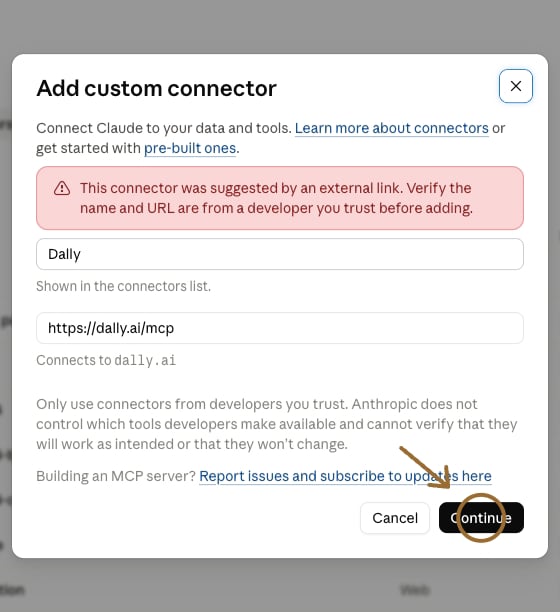
Claude opens **Add custom connector** with the name **Dally** and the URL `https://dally.ai/mcp` already filled in. Claude notes that an external link suggested them. Check both, then select **Continue**.
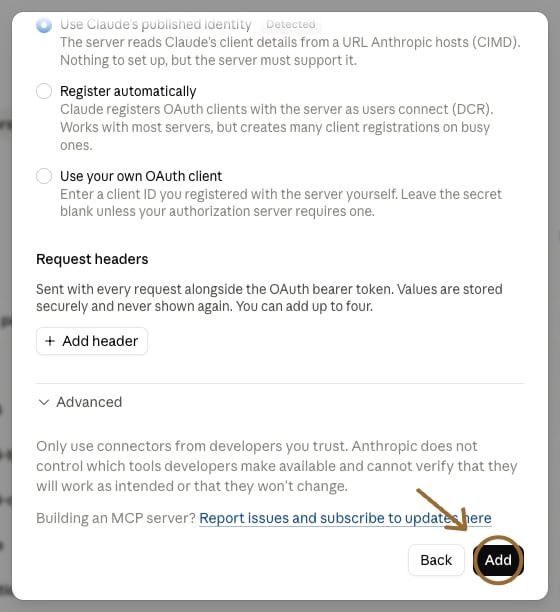
 Claude shows how it will sign in to Dally, with **Use Claude's published identity** already chosen and marked **Detected**. Leave everything as it is: Dally needs no client ID, no client secret and no request headers. Scroll to the bottom and select **Add**.
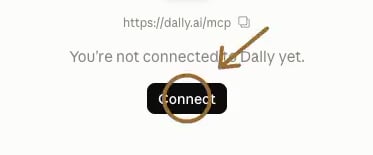
 Claude opens Dally's connector page, which says **You're not connected to Dally yet.** Select **Connect**.
 A Dally sign-in page opens. Sign in with the same email you used in step 1. A Cloudflare "verify you are human" box can appear once; tick it.
Claude returns to the connector page, and Dally now shows as connected. Your Dally setup screen notices within a few seconds and moves to **Say hello**.
If the dialog does not open from the link, go to [Customize → Connectors](https://claude.ai/customize/connectors), select **+**, then **Add custom connector**, and enter the name **Dally** and this URL yourself:
```text theme={null}
https://dally.ai/mcp
```
## 3. Say hello
Select **Try in Claude** on your Dally setup screen, or [open a new chat with the message filled in](https://claude.ai/new?q=Using%20Dally%2C%20get%20me%20set%20up), and send it:
```text theme={null}
Using Dally, get me set up
```
The first time Claude uses a Dally tool it asks for permission. Read the action, then select **Allow once** or **Always allow**.
Dally answers with a **Connect Instagram** card. Select it, approve Dally on Instagram, and come back to the chat. Dally reads your posts, then offers your first question. You can also connect Instagram, and later your other accounts, from [dally.ai](https://dally.ai/settings).
Start a message with **Using Dally** whenever you want Dally to answer.
## What to ask
Each of these opens a new Claude chat with the question filled in.
* [What should I make next?](https://claude.ai/new?q=Using%20Dally%2C%20Based%20on%20content%20I%27ve%20made%20and%20what%27s%20working%20for%20others%2C%20what%20should%20I%20make%20next%3F) *"Using Dally, based on content I've made and what's working for others, what should I make next?"*
* [Ideas in my voice.](https://claude.ai/new?q=Using%20Dally%2C%20Give%20me%20five%20post%20ideas%20that%20reuse%20my%20own%20past%20stories%20and%20formats%2C%20not%20someone%20else%27s.) *"Using Dally, give me five post ideas that reuse my own past stories and formats, not someone else's."*
* [What's working in my niche.](https://claude.ai/new?q=Using%20Dally%2C%20Show%20me%20the%20top%20reels%20in%20my%20niche%20from%20the%20last%2090%20days%20and%20the%20hooks%20they%20open%20with.) *"Using Dally, show me the top reels in my niche from the last 90 days and the hooks they open with."*
* [What's working for me.](https://claude.ai/new?q=Using%20Dally%2C%20Which%20of%20my%20posts%20performed%20best%20this%20year%2C%20and%20what%20do%20they%20have%20in%20common%3F) *"Using Dally, which of my posts performed best this year, and what do they have in common?"*
* [How did my last post do?](https://claude.ai/new?q=Using%20Dally%2C%20Look%20at%20my%20most%20recent%20post%20and%20tell%20me%20how%20it%20did%20against%20my%20average%2C%20and%20why.) *"Using Dally, look at my most recent post and tell me how it did against my average, and why."*
Dally can also change things when you ask it to: *"Using Dally, save my latest reel to my Swipe file."* Claude shows the action and asks before it runs.
After you connect Dally on claude.ai, the same Claude account can use it on the web, in Claude Desktop, in Cowork and in the Claude mobile app.
## Team and Enterprise accounts
On a Team or Enterprise plan, an Owner or Primary Owner adds Dally to the organization first. Members then connect their own Dally accounts.
### Owner steps
1. Open [Organization settings → Connectors](https://claude.ai/admin-settings/connectors).
2. Select **Add**.
3. Point to **Custom**, then select **Web**.
4. Enter **Dally** for the name, and paste this URL:
```text theme={null}
https://dally.ai/mcp
```
5. Leave the default settings, then select **Add**.
### Member steps
1. Open [Customize → Connectors](https://claude.ai/customize/connectors).
2. Find **Dally**. It can have a **Custom** label.
3. Select **Connect**, then sign in to your Dally account.
4. Say hello, as in step 3 above.
## Keep Dally up to date
Claude keeps the list of Dally's tools it read when you connected. When Dally says it has a new version, one press picks it up: [refresh Dally in Claude](/connect/refresh#claude).
## If something looks wrong
| You see | What to do |
| ------------------------------------------------ | ---------------------------------------------------------------------------------------------------------------------------------------------------------------------------------- |
| The add link opens Claude's sign-in page | This browser is signed out of claude.ai. Sign in there, then open the link again. On a phone, use Safari or Chrome, not the Claude app. |
| No **Add custom connector** choice | On a Team or Enterprise account, ask an Owner or Primary Owner to add Dally to the organization first. |
| Your Dally setup screen keeps waiting for Claude | Claude connected a different Dally account. Select **Disconnect** on Dally's connector page in Claude, then **Connect**, and sign in with the email your Dally setup screen names. |
| Dally shows **Disconnected** | Select **Connect**. Sign in to Dally again if Claude asks you to. |
| Claude answers without Dally | Start the message with **Using Dally**. If Dally is switched off for the chat, select **+**, then **Connectors**, and turn it on. |
| Dally asks you to connect Instagram | Select the card in the chat, or connect it at [dally.ai/settings](https://dally.ai/settings). Dally reads your posts once Instagram is linked. |
| Claude asks for permission | Read the action and select **Allow once** or **Always allow** if it matches your request. This is normal. |
Still stuck? Write to [support@dally.ai](mailto:support@dally.ai) or see [dally.ai/support](https://dally.ai/support).
A Dally sign-in page opens. Sign in with the same email you used in step 1. A Cloudflare "verify you are human" box can appear once; tick it.
Claude returns to the connector page, and Dally now shows as connected. Your Dally setup screen notices within a few seconds and moves to **Say hello**.
If the dialog does not open from the link, go to [Customize → Connectors](https://claude.ai/customize/connectors), select **+**, then **Add custom connector**, and enter the name **Dally** and this URL yourself:
```text theme={null}
https://dally.ai/mcp
```
## 3. Say hello
Select **Try in Claude** on your Dally setup screen, or [open a new chat with the message filled in](https://claude.ai/new?q=Using%20Dally%2C%20get%20me%20set%20up), and send it:
```text theme={null}
Using Dally, get me set up
```
The first time Claude uses a Dally tool it asks for permission. Read the action, then select **Allow once** or **Always allow**.
Dally answers with a **Connect Instagram** card. Select it, approve Dally on Instagram, and come back to the chat. Dally reads your posts, then offers your first question. You can also connect Instagram, and later your other accounts, from [dally.ai](https://dally.ai/settings).
Start a message with **Using Dally** whenever you want Dally to answer.
## What to ask
Each of these opens a new Claude chat with the question filled in.
* [What should I make next?](https://claude.ai/new?q=Using%20Dally%2C%20Based%20on%20content%20I%27ve%20made%20and%20what%27s%20working%20for%20others%2C%20what%20should%20I%20make%20next%3F) *"Using Dally, based on content I've made and what's working for others, what should I make next?"*
* [Ideas in my voice.](https://claude.ai/new?q=Using%20Dally%2C%20Give%20me%20five%20post%20ideas%20that%20reuse%20my%20own%20past%20stories%20and%20formats%2C%20not%20someone%20else%27s.) *"Using Dally, give me five post ideas that reuse my own past stories and formats, not someone else's."*
* [What's working in my niche.](https://claude.ai/new?q=Using%20Dally%2C%20Show%20me%20the%20top%20reels%20in%20my%20niche%20from%20the%20last%2090%20days%20and%20the%20hooks%20they%20open%20with.) *"Using Dally, show me the top reels in my niche from the last 90 days and the hooks they open with."*
* [What's working for me.](https://claude.ai/new?q=Using%20Dally%2C%20Which%20of%20my%20posts%20performed%20best%20this%20year%2C%20and%20what%20do%20they%20have%20in%20common%3F) *"Using Dally, which of my posts performed best this year, and what do they have in common?"*
* [How did my last post do?](https://claude.ai/new?q=Using%20Dally%2C%20Look%20at%20my%20most%20recent%20post%20and%20tell%20me%20how%20it%20did%20against%20my%20average%2C%20and%20why.) *"Using Dally, look at my most recent post and tell me how it did against my average, and why."*
Dally can also change things when you ask it to: *"Using Dally, save my latest reel to my Swipe file."* Claude shows the action and asks before it runs.
After you connect Dally on claude.ai, the same Claude account can use it on the web, in Claude Desktop, in Cowork and in the Claude mobile app.
## Team and Enterprise accounts
On a Team or Enterprise plan, an Owner or Primary Owner adds Dally to the organization first. Members then connect their own Dally accounts.
### Owner steps
1. Open [Organization settings → Connectors](https://claude.ai/admin-settings/connectors).
2. Select **Add**.
3. Point to **Custom**, then select **Web**.
4. Enter **Dally** for the name, and paste this URL:
```text theme={null}
https://dally.ai/mcp
```
5. Leave the default settings, then select **Add**.
### Member steps
1. Open [Customize → Connectors](https://claude.ai/customize/connectors).
2. Find **Dally**. It can have a **Custom** label.
3. Select **Connect**, then sign in to your Dally account.
4. Say hello, as in step 3 above.
## Keep Dally up to date
Claude keeps the list of Dally's tools it read when you connected. When Dally says it has a new version, one press picks it up: [refresh Dally in Claude](/connect/refresh#claude).
## If something looks wrong
| You see | What to do |
| ------------------------------------------------ | ---------------------------------------------------------------------------------------------------------------------------------------------------------------------------------- |
| The add link opens Claude's sign-in page | This browser is signed out of claude.ai. Sign in there, then open the link again. On a phone, use Safari or Chrome, not the Claude app. |
| No **Add custom connector** choice | On a Team or Enterprise account, ask an Owner or Primary Owner to add Dally to the organization first. |
| Your Dally setup screen keeps waiting for Claude | Claude connected a different Dally account. Select **Disconnect** on Dally's connector page in Claude, then **Connect**, and sign in with the email your Dally setup screen names. |
| Dally shows **Disconnected** | Select **Connect**. Sign in to Dally again if Claude asks you to. |
| Claude answers without Dally | Start the message with **Using Dally**. If Dally is switched off for the chat, select **+**, then **Connectors**, and turn it on. |
| Dally asks you to connect Instagram | Select the card in the chat, or connect it at [dally.ai/settings](https://dally.ai/settings). Dally reads your posts once Instagram is linked. |
| Claude asks for permission | Read the action and select **Allow once** or **Always allow** if it matches your request. This is normal. |
Still stuck? Write to [support@dally.ai](mailto:support@dally.ai) or see [dally.ai/support](https://dally.ai/support).